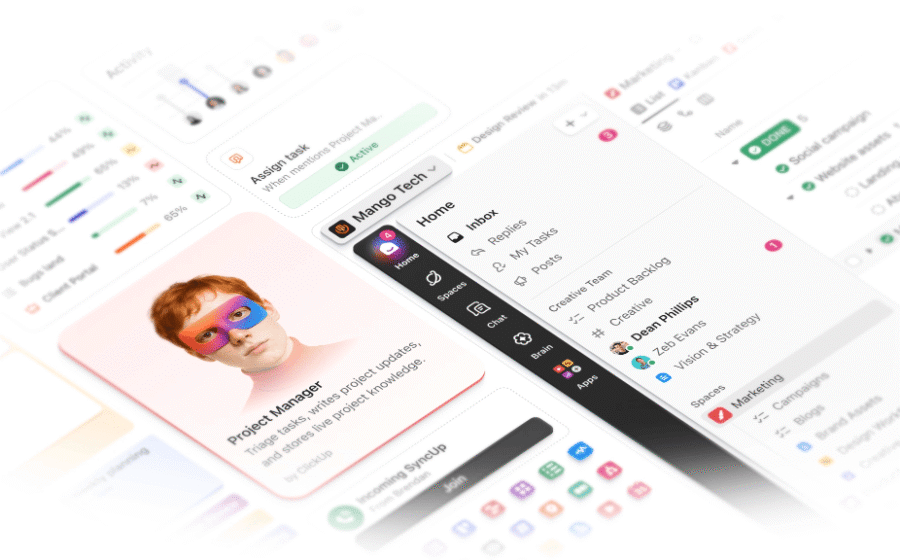
Most people open ClickUp, get overwhelmed by 200+ features, build something messy, and quietly go back to spreadsheets. This guide fixes that — step by step, for small business owners and managers who need results, not a PhD in project management.
Why most people quit ClickUp in the first week
ClickUp is genuinely powerful. It can replace your project tracker, your docs tool, your team chat, your time tracker, and your reporting dashboard — all in one place. That is also exactly why it destroys people who don’t have a plan before they start.
«I set up 12 Spaces, 40 Lists, turned on every ClickApp, and invited my whole team on day one. By Friday, nobody was using it.»
— Pattern seen in nearly every failed ClickUp implementation
The failure mode is almost always the same: you start big, customize everything at once, and overwhelm your team before they see any value. ClickUp rewards patience. The teams that stick with it — and genuinely save hours each week — are the ones who start embarrassingly simple and expand gradually.
Honest truth: ClickUp has a real learning curve. It is not Trello. Plan 30 minutes of focused setup on day one, and expect 2-3 weeks before it feels natural. That investment pays back fast — but only if you don’t try to skip ahead.
Understanding the ClickUp structure before you touch anything
ClickUp is organized as a hierarchy. Most people skip this part and then build something they have to rebuild later. Spend 5 minutes here and save yourself hours.
The 3-Space rule: If you’re a small business or a single manager setting up ClickUp for the first time, start with no more than 3 Spaces. You can always add more. Starting with too many is how chaos begins.
What views actually mean
ClickUp doesn’t change where your tasks are — views just change how you see them. The same task can appear in List view, Board view (Kanban), Calendar, or Gantt — it’s the same data. Start with List view. Add Board view when your team starts complaining they want to drag cards. Add Gantt only when you have real deadline dependencies.
Setting up your workspace in 30 minutes
Here is the exact sequence. Follow it in order. Do not jump ahead.
1. Create your account and name your WorkspaceGo to clickup.com → Get Started Free. Name your Workspace after your company or team. This name shows up everywhere — keep it professional. Start on the Free Forever plan; you likely won’t need paid features for the first month.
2. Create exactly 2–3 SpacesThink of your main areas of work. For a small business: «Client Work» + «Internal Operations» is often enough. For a manager inside a company: «My Team’s Projects» + «Admin & Processes». Name them clearly. Resist the urge to create one per client or project — that’s what Lists are for.
3. Set up your statuses (and keep them simple)ClickUp lets you customize task statuses per Space. The default set is fine to start. If you want to customize, use no more than 4–5 statuses: To Do → In Progress → In Review → Done. More statuses = more decisions = more friction.
4. Create your first Lists inside each SpaceEach List = one project or ongoing workflow. Under «Client Work»: one List per client. Under «Operations»: a List called «Recurring Tasks» and one called «Team Meetings.» Add 5-10 real tasks to each. Use actual work you need to do — not placeholder tasks.
5. Turn on only 3 ClickApps to startClickApps are optional features you can toggle per Space. For most teams, start with just: Priorities (High/Normal/Low), Due Dates, and Assignees. That’s it. Time tracking, Custom Fields, Tags — leave them off until you feel the specific need.
6. Set up your Home view as your daily dashboardClickUp’s Home screen shows tasks assigned to you, due today, and upcoming. Spend 5 minutes customizing it so it shows exactly what you need to see when you open the app in the morning. This becomes your command center.
Time check: The above 6 steps should take you 25–35 minutes. If you’ve been at it for 2 hours, you’ve gone too deep — stop, close all the settings menus, and come back to basics. The goal today is a working skeleton, not a perfect system.
Your first 7 days — a realistic plan
The biggest mistake managers make is setting up ClickUp perfectly on day one — and then not touching it for a week. The tool only works if you use it daily. Here’s a light daily structure for your first week.
| Day | Activity |
|---|---|
| D1 | Setup day Follow the 6-step setup above. Add all your real current work as tasks. Don’t invite the team yet — get your own foundation right first. |
| D2 | Real work only in ClickUp For everything you work on today, open or update the corresponding task. Close out your old tool for the day. Spot problems in your structure — they’re easier to fix now than later. |
| D3 | Invite one person (optional) If you have a colleague or direct report, invite them to one List only. Assign them a few tasks. Watch what confuses them — that feedback is gold. |
| D4-5 | Refine and simplify Delete Lists you’re not using. Rename anything that’s unclear. Move tasks that ended up in the wrong place. Less is genuinely more at this stage. |
| D6-7 | Invite the full team Now invite everyone. Give a 10-minute walkthrough: «Here’s your Space, here’s your tasks, here’s how to update a status.» Keep the explanation short. The goal is task updates, not mastery. |
The 5 mistakes that kill adoption
👉🏼 Mistake 01
Over-engineering the structure on day oneCreating 10 Spaces, custom fields for everything, and 8 statuses before you’ve done a single real task in the tool. Your perfect system is useless if nobody uses it.
The fix →
Start with 2 Spaces, 3 statuses, no custom fields. Add complexity only when you feel the specific pain of not having it.
👉🏼Mistake 02
Turning on everything in ClickAppsClickApps are features like Sprints, Dependencies, Milestones, Custom Fields. They look useful. Enabling all of them at once adds decision fatigue to every task.
The fix →
Enable Priorities + Due Dates + Assignees only. Leave the rest until your team is comfortable with the basics.
👉🏼Mistake 03
Not doing a real team onboardingInviting people via email and expecting them to figure it out. ClickUp is not intuitive for new users. If they open it and feel lost, they will quietly go back to Slack or email.
The fix →
Run a 10-minute screen share walkthrough. Show them exactly: where their tasks are, how to change a status, and where to ask questions.
👉🏼Mistake 04
Using ClickUp as a one-way broadcast toolThe manager creates all tasks, assigns them, and then waits. The team has no stake in the system and no habit of opening it. It becomes a to-do list that only the manager reads.
The fix →
Require team members to update task statuses and add comments themselves. Make the rule clear: «If it’s not in ClickUp, it doesn’t exist.»
👉🏼Mistake 05
Migrating from another tool all at onceImporting 400 tasks from Jira, Asana, or Trello on day one. Old tasks fill your workspace with noise, confuse the team about what’s current, and make the structure feel bloated immediately.
The fix →
Start fresh with only active, current work. Archive or complete your migration tool’s tasks. You can import historical data later, once your team is comfortable.
Getting your team on board
Technology adoption fails when it’s imposed, not explained. The most common team complaint about ClickUp is «I don’t know what I’m supposed to do here.» Your job as the manager is to eliminate that uncertainty.
➡️ Set exactly one rule to startPick a single non-negotiable habit for your team. The most effective one: «Every task must be updated before our weekly team meeting». That’s it. One rule. Reinforce it consistently for two weeks. Only add more rules once this one is automatic.
➡️ Define what a good task looks likeShow your team an example of a well-formed task: a clear name (starts with a verb), an assignee, a due date, and a one-line description of what «done» looks like. Bad task: «Website». Good task: «Write homepage hero section copy — first draft by Friday, needs Sarah’s approval».
➡️ Create a «How We Use ClickUp» doc inside ClickUpClickUp has a built-in Docs feature. Write a one-page internal guide — your team’s conventions for naming, status meanings, and when to use comments vs. chat. Having this in writing cuts «how do I do this?» questions by 80%.
Manager move: Start your weekly team meeting by pulling up ClickUp on the projector and reviewing the board together. This signals to the team that ClickUp is where real decisions get made — and it drives adoption faster than any mandate.
When to unlock advanced features
ClickUp’s most powerful features are also its most dangerous for new teams. Here’s a phased timeline for introducing them without overwhelming people.
| Feature | When to enable | Why it’s powerful | Avoid until |
|---|---|---|---|
| Custom Fields | Week 3+ | Track client name, budget, project phase on every task | Your basic task flow is solid |
| Automations | Month 2+ | Auto-assign tasks, send Slack alerts on status change | You’ve done it manually 10+ times |
| Dashboards | Month 2+ | Visual reports on team workload and project health | Your tasks are consistently up to date |
| ClickUp Brain (AI) | Month 3+ | Summarize threads, auto-generate subtasks, draft docs | Your team uses comments regularly |
| Goals | Quarterly review | Link tasks to OKRs, track progress toward targets | You have a stable project structure |
| Time Tracking | When billing matters | Log time per task, export for invoicing | You actually need to bill clients by hour |
The pattern is consistent: enable a feature only when you’ve felt the specific pain of not having it. Don’t enable features because they look useful in demos. That path leads back to an overwhelming, abandoned workspace.
Your launch checklist
Before you consider your ClickUp setup «done» for the first phase, run through this list. Everything checked = you have a functional foundation.
✅ Workspace namedand profile complete
✅ Workspace namedand profile complete
✅ Statuses simplifiedto 4–5 max per Space
✅ At least one List per Space with real current tasks
✅ Every task has an assignee, due date, and priority
✅ Only 3 ClickApps enabled: Priorities, Due Dates, Assignees
✅ Home view configured as a daily personal dashboard
✅ Team invited with correct permission levels
✅ 10-min team walkthrough completed (or scheduled)
✅ «How We Use ClickUp» doc written and shared
✅One team rule defined: tasks updated before weekly meeting
✅ Advanced features turned off until month 2
You’re ready. A setup that passes this checklist with 12 tasks in it will outperform a «perfect» 500-task system that nobody updates. Ship it, use it daily, and improve from there.